Related Links
Migrate Veeam® v12 Backup from BackBlaze B2 to IDrive® e2
Veeam® v12 is a popular backup solution for businesses and enterprises. Know how to easily migrate your Veeam® backups from BackBlaze B2 to the secure IDrive® e2 S3 object storage.
Steps to Migrate Veeam® v12 Backups to IDrive® e2
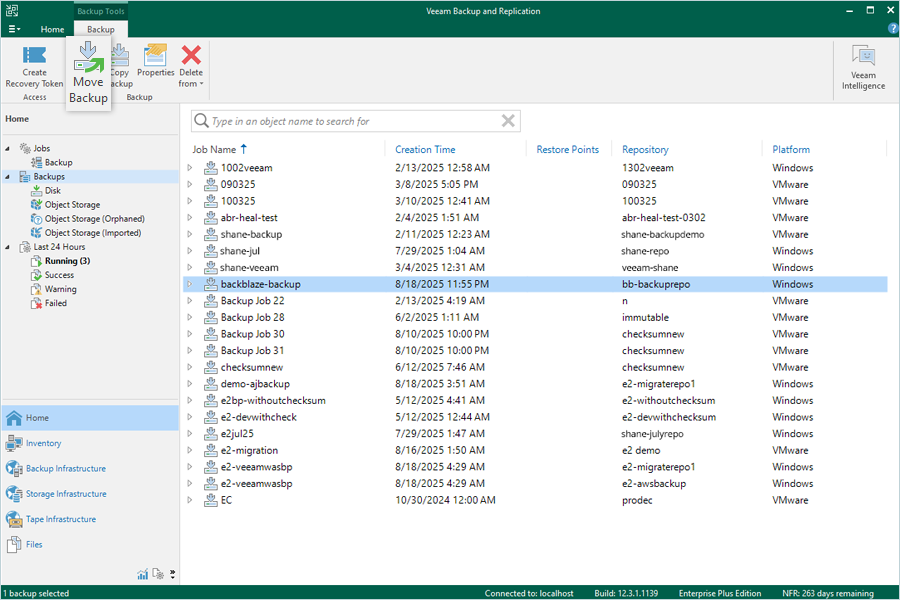
- Click Backups from the Home screen.
- Select the backup you want to migrate from the backup list. Click Move Backup.
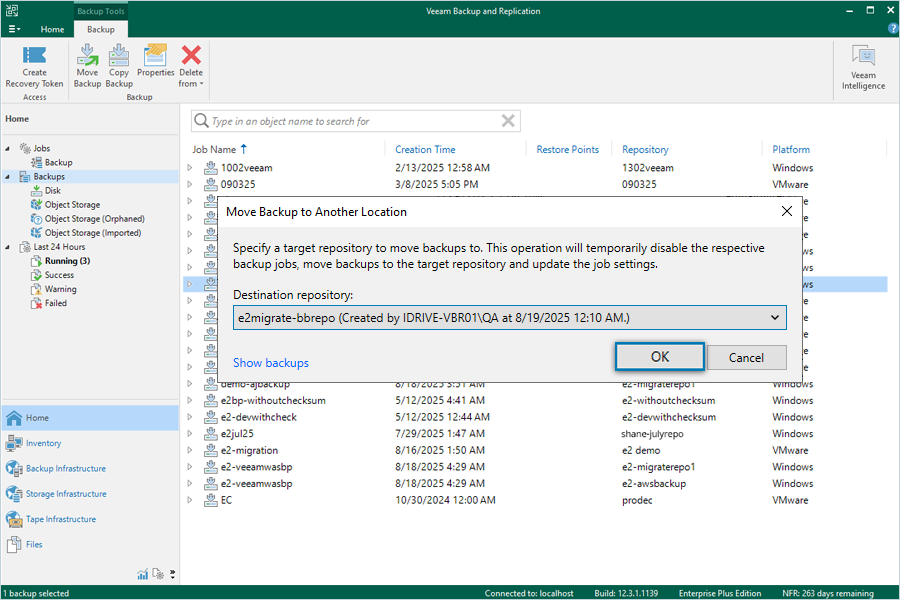
- Select the IDrive® e2 storage repository as the destination and click OK. The migration progress will be displayed on screen.
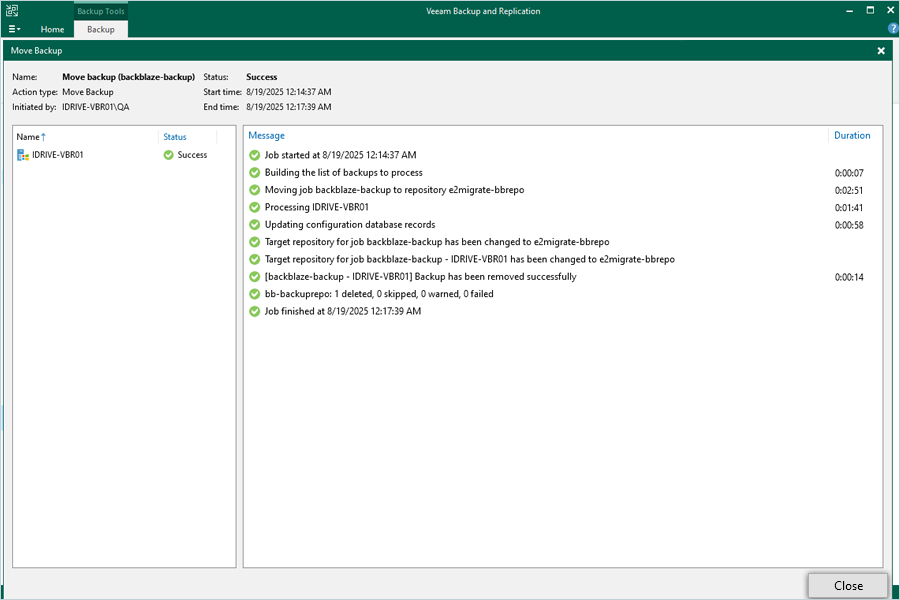
- Click Close once the migration is complete.
- Go to Home and click Backups to confirm the migration. The IDrive® e2 storage repository will update automatically.
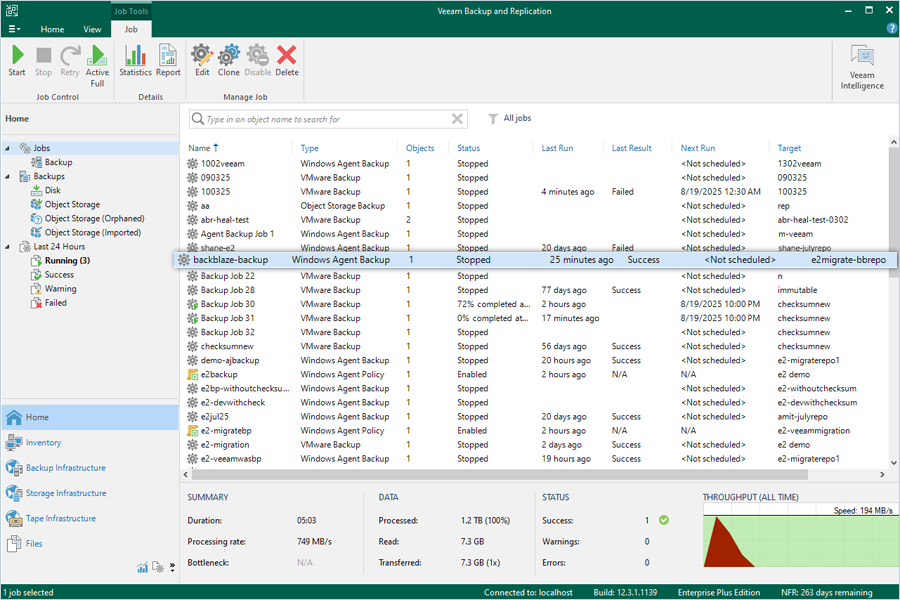
All future backups for this job from now on will go to the IDrive® e2 repository.
Note: Data restoration is handled by your specific backup solution provider and is affected by multiple variables that are unique to your environment. For application-related enquiries/support, it is strongly recommended you seek guidance from the technical team of your backup solution provider.