Integrate Tiger Bridge with IDrive® e2
Tiger Bridge is a hybrid cloud data management platform that connects on-premises storage with cloud object storage. It automatically replicates and tiers files to the cloud, enabling seamless archiving, backup, and disaster recovery without changing user workflows. This helps businesses reduce local storage costs while ensuring continuous file accessibility. IDrive® e2 S3-compatible object storage provides Tiger Bridge with secure, scalable, and highly durable cloud storage for efficient data protection and long-term retention.
Prerequisites:
Before you begin, ensure the following:
- A supported Windows operating system.
- An active IDrive® e2 account. Sign up here if you do not have one.
- A bucket in IDrive® e2. Learn how to create a bucket
- Valid Access Key ID and Secret Access Key. Learn how to create an access key.
- Tiger Bridge is installed and operational.
Configuring Tiger Bridge with IDrive® e2
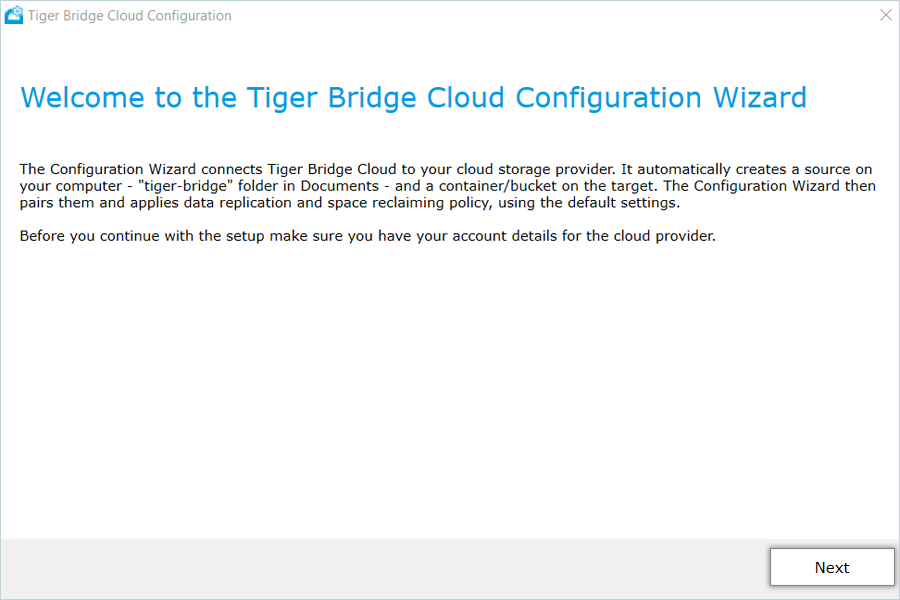
- After installation, the Configuration Wizard launches automatically. Click Next.
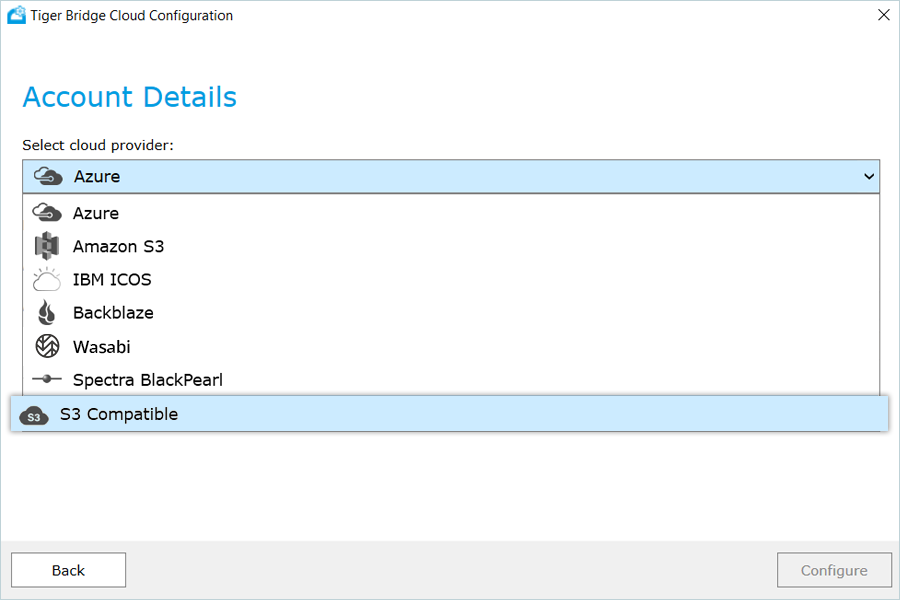
- From the drop-down menu, select S3 Compatible.
- On the next screen, enter the required details and click Configure:
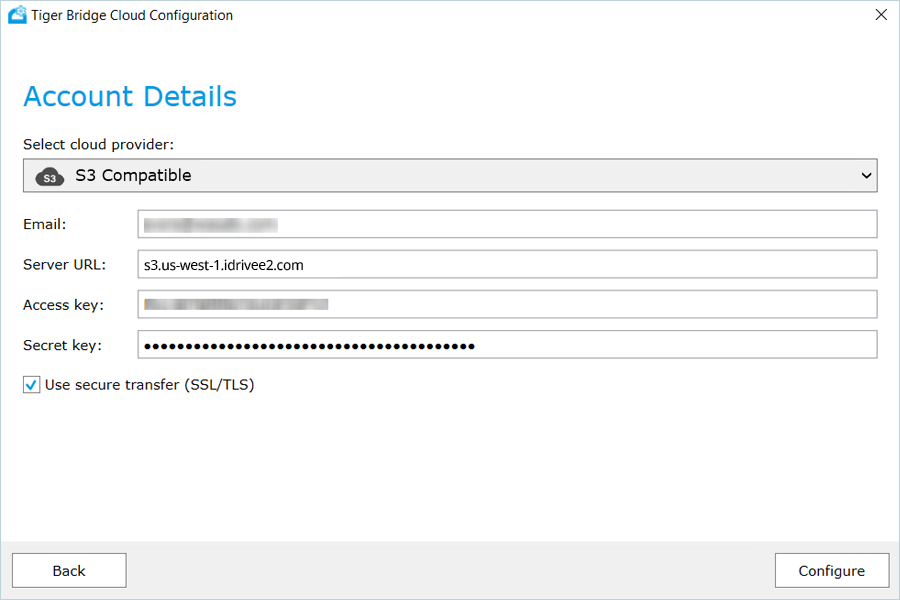
- Provide your email address.
- Enter the IDrive® e2 S3 endpoint as the Service URL (refer to the IDrive® e2 Service URLs documentation for region-specific endpoints).
- Enter your IDrive® e2 Access Key.
- Enter your IDrive® e2 Secret Key.
- Review the configuration summary and click Finish.
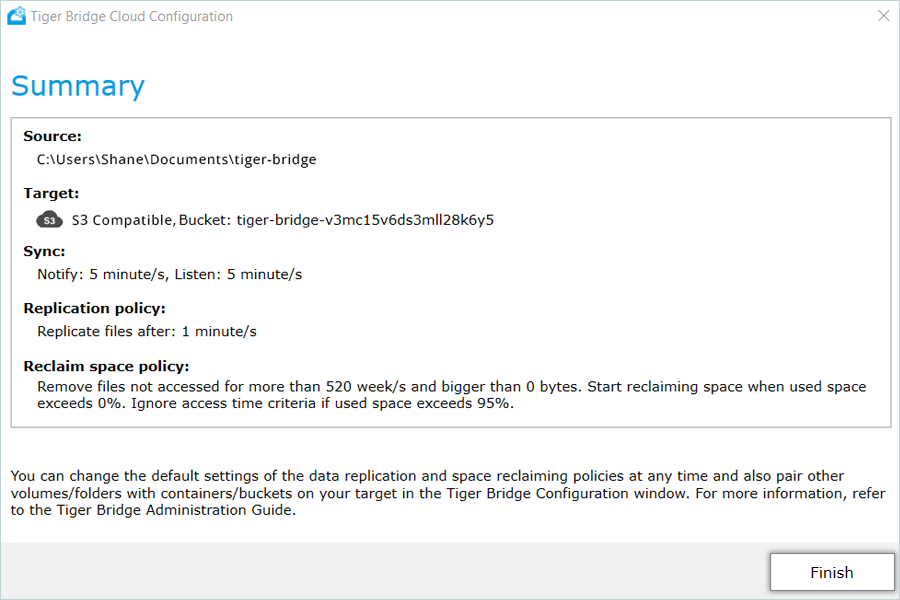
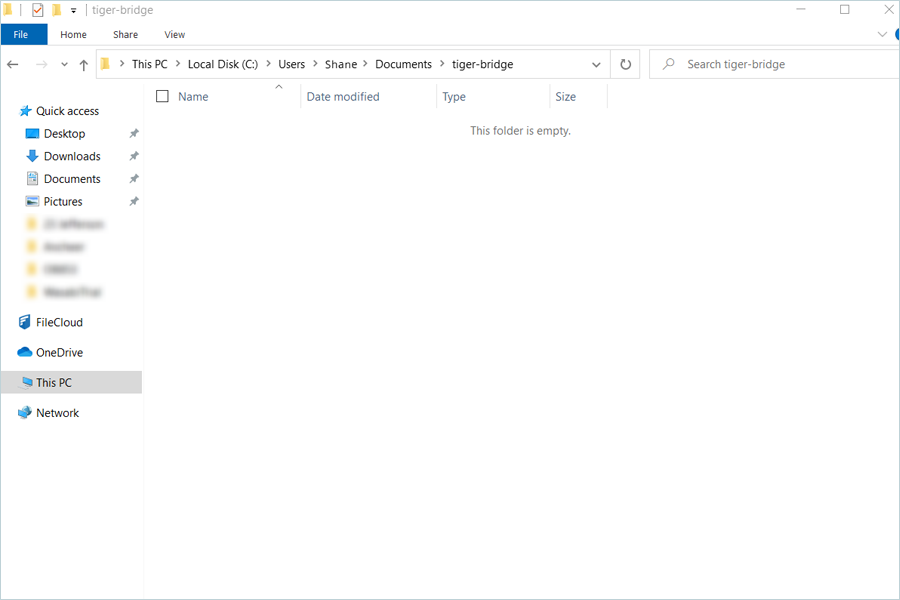
- A new folder named tiger bridge (under the specified Source path) will be created on your system.
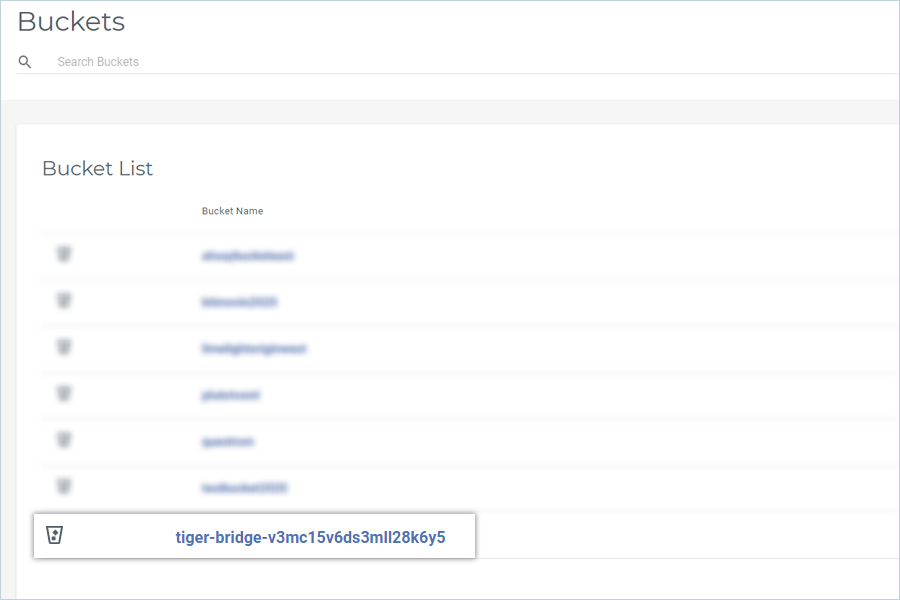
- A corresponding bucket (for example, tiger-bridge-xxxxxxxxxx) will also be created in your IDrive® e2 account.
- Files added to the local Source folder will automatically sync to the IDrive® e2 bucket.
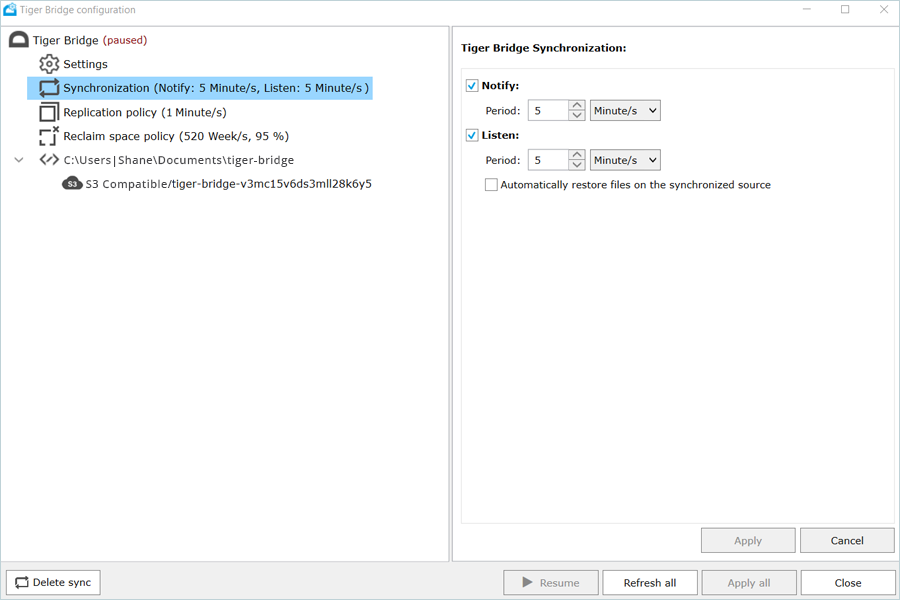
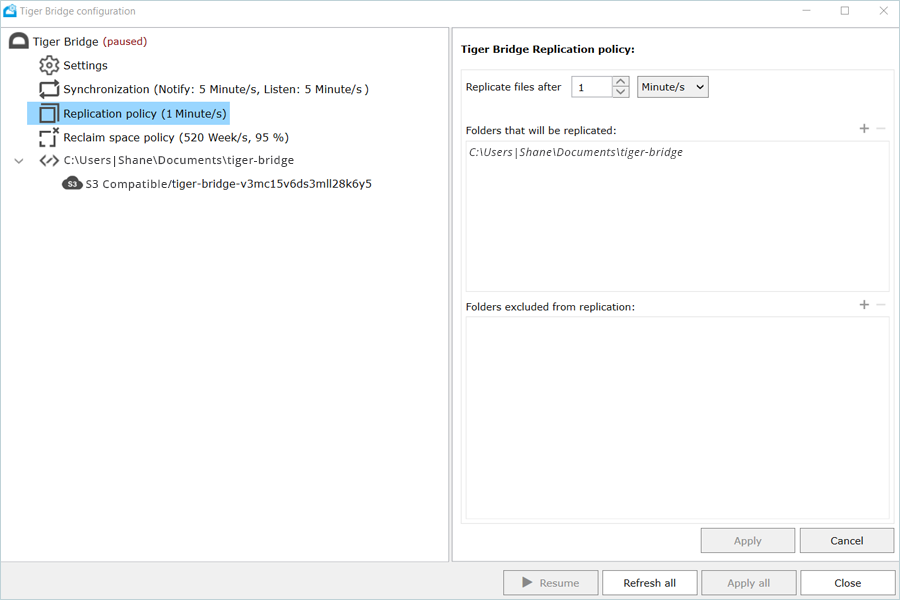
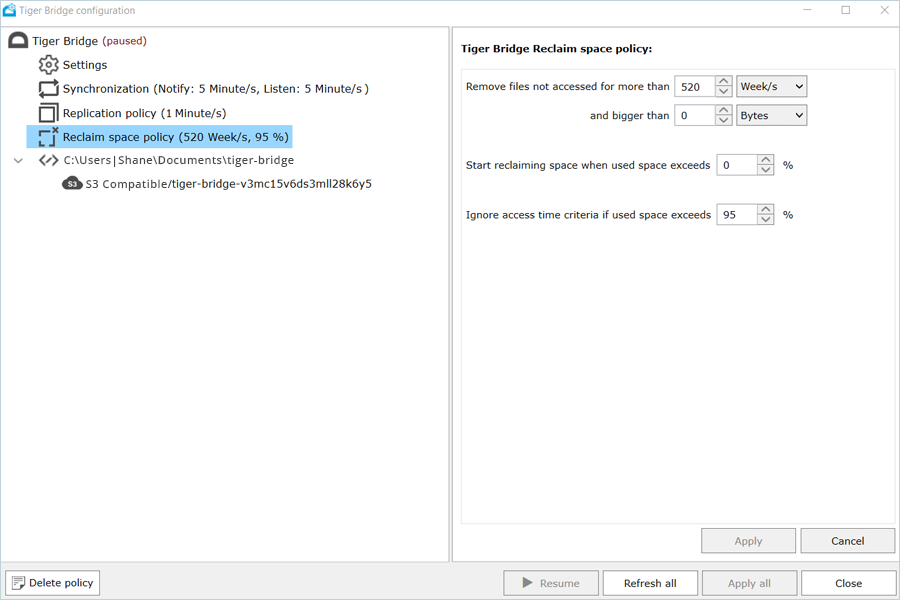
- To modify the default Tiger Bridge configuration, open the Tiger Bridge application on your computer and access the Settings options.
Note: Data restoration is handled by your specific backup solution provider and is affected by multiple variables that are unique to your environment. For application-related enquiries/support, it is strongly recommended that you seek guidance from the technical team of your backup solution provider.