Reseller

As an IDrive® e2 reseller partner, you can buy S3-compatible cloud object storage and resell it to users at your price. See plans
Yes, you can integrate entire user management in any of your internal systems by using Reseller APIs. Perform user operations such as creating users, removing users, listing users, viewing storage usage etc. You can also perform storage operations such as list regions, enable or remove regions for users, and add or remove access keys.
You can view or change API access keys from the web console.
- Log in to your IDrive® e2 reseller account.
- Go to 'Settings' > 'API Access' tab.
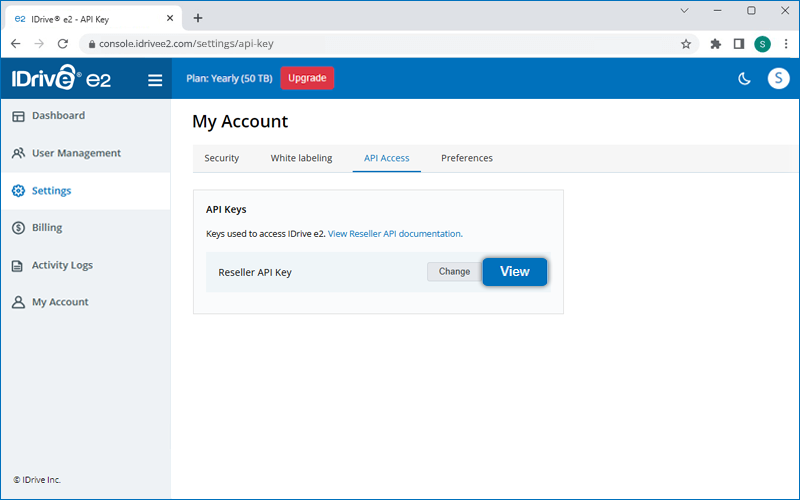
- Click 'View' and enter your password to view the Access Keys.
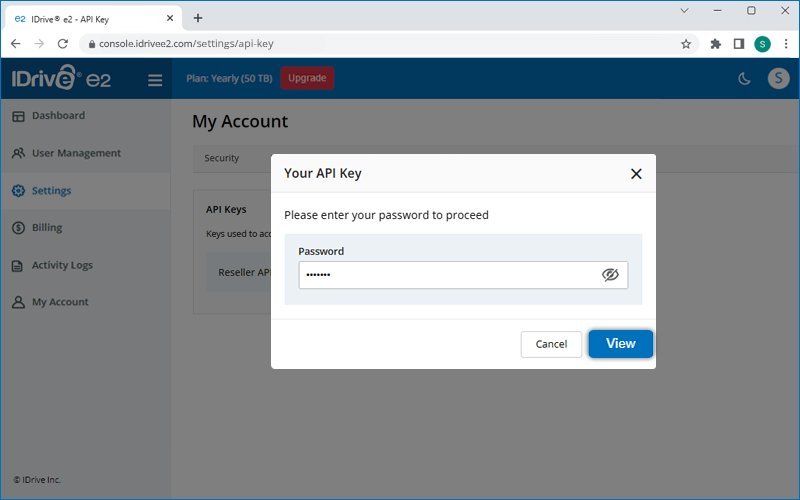
- Click 'Change', enter your password and modify the Access Keys.
To add a new user,
- Log in to your IDrive® e2 reseller account.
-
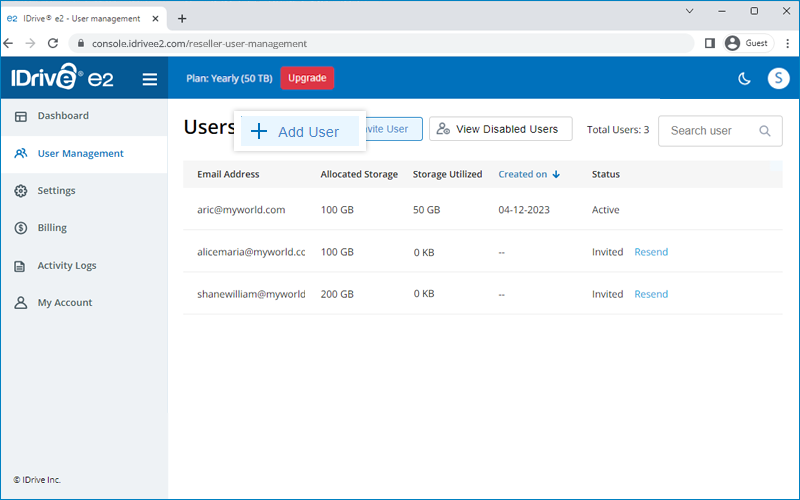
Click 'Add User'.
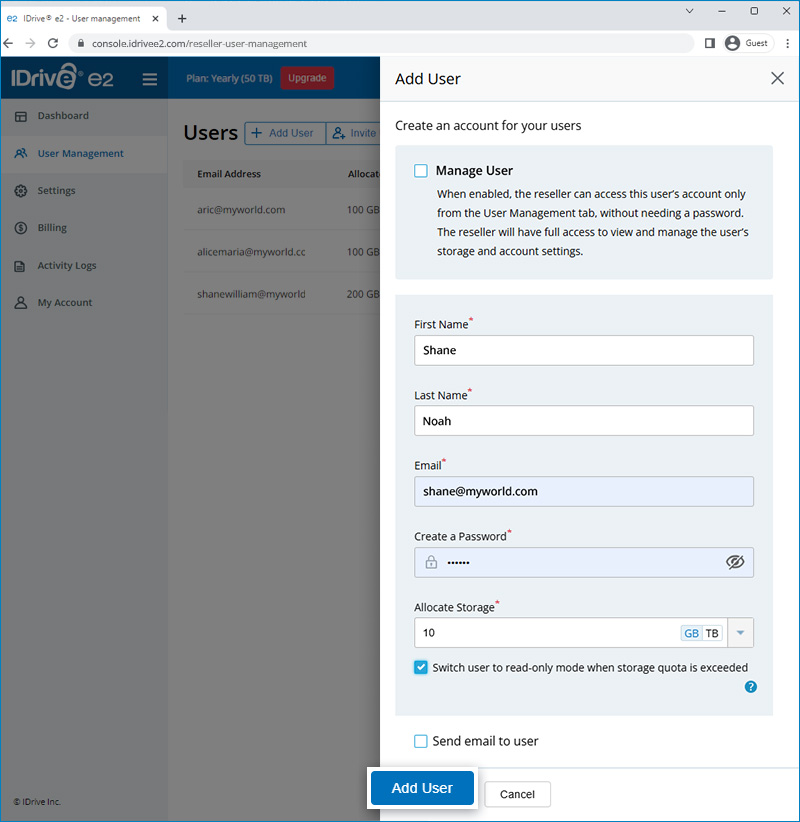
- Enter the first name, last name, and email address of the user and create a password.
- Click the 'Allocate Storage' dropdown and select a storage quota for the user. Select the 'Switch user to read-only mode when the storage quota is exceeded' checkbox to automatically switch to read-only mode after the user exceeds the allocated storage quota.
Note: Storage usage updates may take up to 24 hours to be reflected. As a result, the user gets switched to read-only mode with a corresponding delay once the allocated storage is exceeded. - Select the checkbox to notify the user by email.
- Select the 'Manage User' checkbox to have full access and management control for this user.
-
Click 'Add User'.
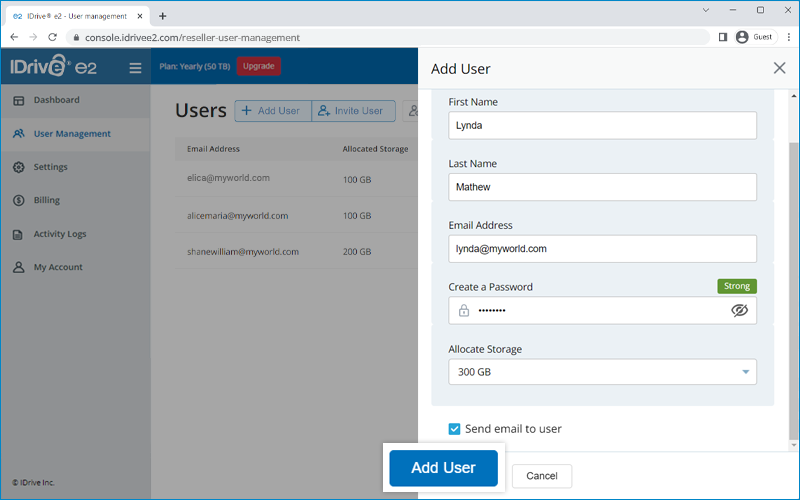
An account will be created for the user. The user can log in to the account using the assigned password.
Note:
- You can add up to 100 users for free. To add more users, there is a charge of $5/user/year.
- You can enable the 'Manage User' option while adding a user to create a managed user. Learn more.
Contact IDrive® e2 support for further details.
Can resellers create managed customer accounts and retain control without granting direct IDrive® e2 access?
Yes. As a reseller, you can create managed customer accounts by selecting the 'Manage User' option while adding users to your IDrive® e2 reseller account. This setup lets you allocate storage, manage permissions, and retain full control over the accounts. You can also generate access keys and secret keys to provide secure customer access, ensuring complete administrative oversight and safeguarding sensitive account information.
To add a managed user,
- Log in to your IDrive® e2 reseller account.
- Click 'Add User'.
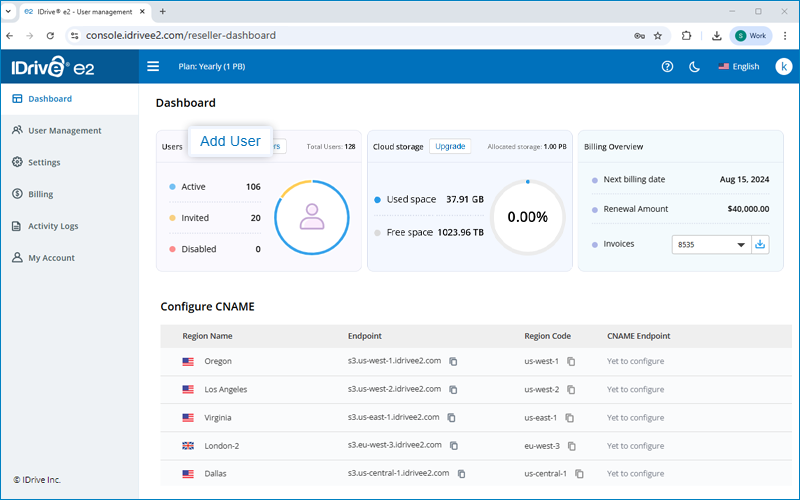
- Enter the first name, last name, and email address of the user.
- Allocate storage and click 'Add User'.
To access managed users, in the User Management tab click on the required 'Managed User'. The IDrive e2 console associated with the user will open, and you can manage and monitor the user as required.
To invite multiple users via email,
- Log in to your IDrive® e2 reseller account.
-
Click 'Invite Users'.
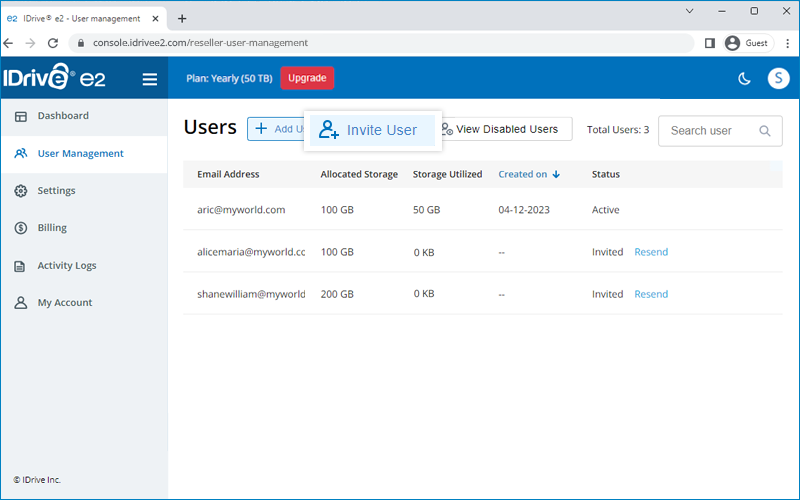
- For each user, enter the email address, click the 'Allocate Storage' dropdown, and select a storage quota.
- Select the 'Switch user to read-only mode when the storage quota is exceeded' checkbox to automatically switch to read-only mode after the user exceeds the allocated storage quota.
Note: Storage usage updates may take up to 24 hours to be reflected. As a result, the user gets switched to read-only mode with a corresponding delay once the allocated storage is exceeded. - Click 'Add' to add more users to the list.
-
Click 'Invite Users'.
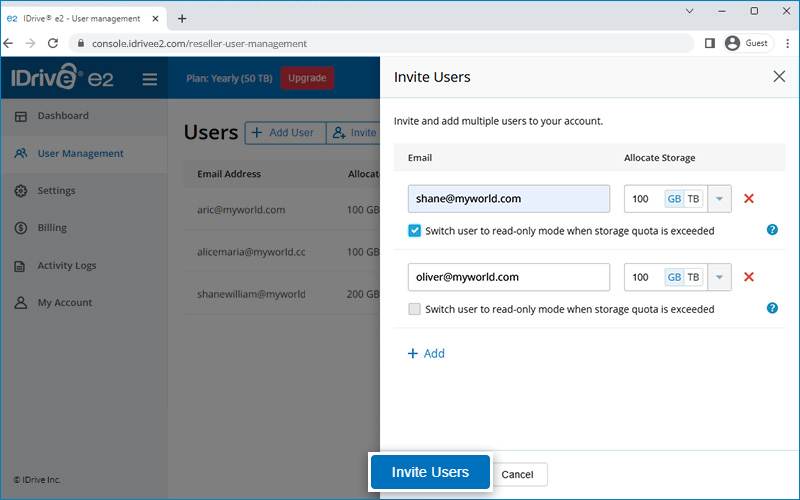
The user will receive a link in an email to create an IDrive® e2 account. All users will be listed under the 'User Management' tab.
Note: You can invite up to 100 users for free. To invite more users, there will be a charge of $5/user/year.
Contact IDrive® e2 support for further details.
Yes, you can update the password for a user or send a link to users to reset their password.
To update the password,
- Log in to your IDrive® e2 reseller account.
- Hover on the required user and click
 .
.
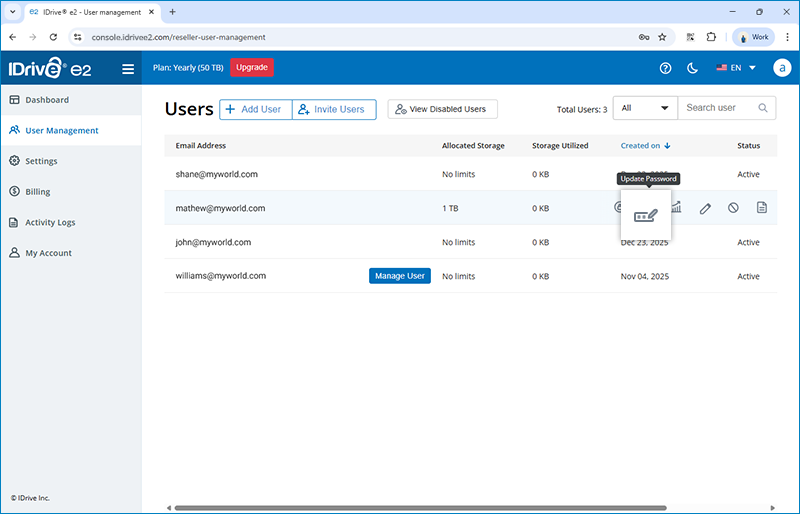
- Enter the old password of user account.
- Enter the new password and confirm password for user account.
- Click Update.
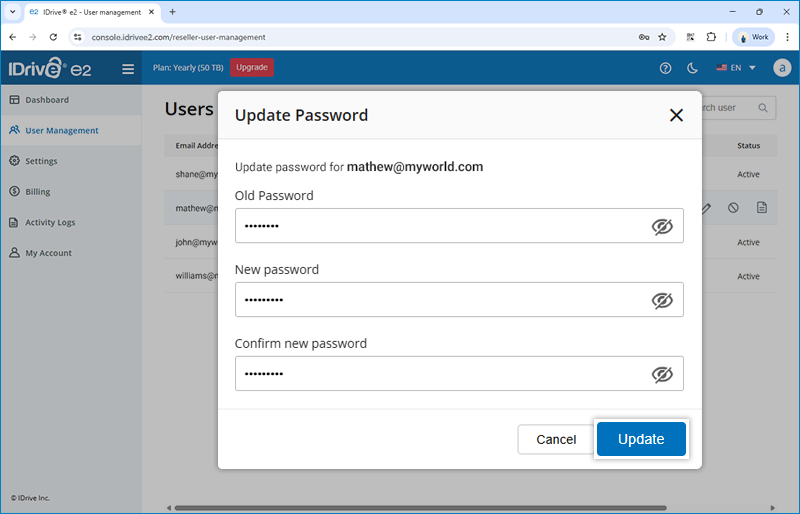
On successful update the user will be able to sign in with the new password.
To send a password reset link to users,
- Log in to your IDrive® e2 reseller account.
- Hover on the required user and click
 .
.
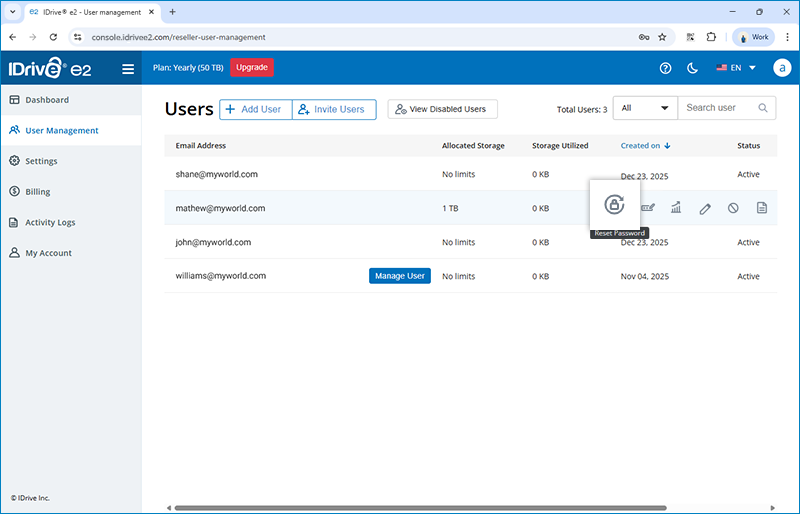
- Click Yes to provide confirmation in the popup.
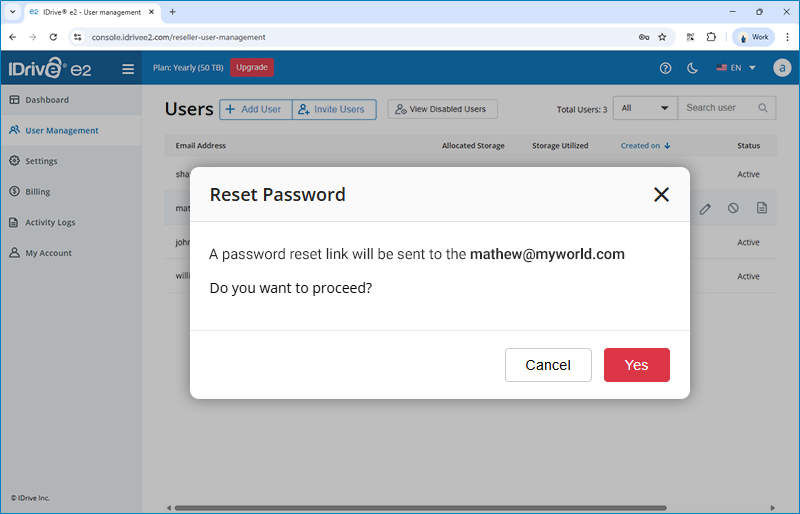
The user will receive a password reset link on their registered email address.
Yes, we allow partners to white-label their IDrive® e2 storage endpoint URLs. This facility enables our partners to provide storage access to their end users while fully branding their object storage endpoints, maintaining security, and S3 API compatibility. Instead of using the default IDrive® e2 endpoints, you can set up your own domain and secure it with your own SSL certificate, for branding control and the flexibility to integrate endpoints into your applications under your naming conventions.
Using this white-labelling capability, our partner will be able to provide the IDrive® e2 object storage to customers without revealing IDrive® e2 endpoint URL.
To be eligible to use the white-label facility, you just need to create an IDrive® e2 reseller account, enable the regions and follow the CNAME documentation.
IDrive® e2 CNAME service is completely free.
Yes, resellers can use their brand name, logo, fav icon, custom domain URL, and copyright name to provide a fully branded experience for users when accessing the IDrive® e2 web console.
To add assets for white labeling,
- Log in to your IDrive® e2 reseller account.
- Go to Settings > White labeling.
- Enter a brand name.
- Upload a logo and fav icon.
- Enter a domain URL. Ensure DNS is configured for the domain URL using CNAME.
- Enter a copyright name to be used for the white-labeled application.
- Check the preview and click 'Preview and Save'.
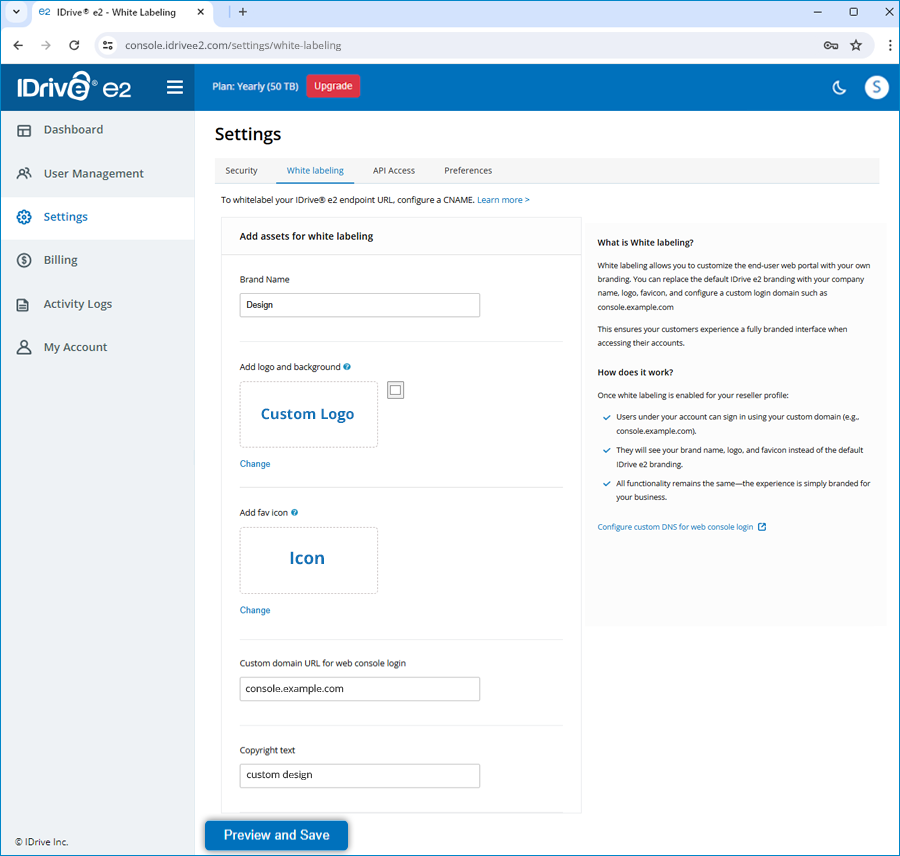
You can edit or delete the brand name, logo, fav icon, custom domain URL, and copyright name.
Create user accounts manually
- Add each user under your reseller profile, then share their login credentials along with your custom web login URL.
Avoid using the "Invite User" option
- The invite feature sends a signup link directly from IDrive® e2, which breaks the white label experience.
Disable all IDrive® e2 email notifications for sub-users
- Any automated email from the system displays IDrive® e2 branding.
- To maintain a fully white-labeled setup, ensure email notifications are turned off during user creation or editing.
Handle all communication through the reseller
- Users should reach out to you—not IDrive® e2—for support or account questions.
- This keeps the experience consistent and fully white-labeled.
Resellers can control region access permissions for their users directly from the dashboard. After signing in to their reseller account, they can navigate to the Regions section and update the permissions to disable specific regions from being enabled by users.
Note: If a user has already enabled a region before the reseller applies the restriction, the user can continue using that region.
I received an email stating that my account has been switched to read-only mode because I exceeded my storage quota. How do I resolve this issue?
Your account was automatically switched to read-only mode because your storage usage exceeded the quota allocated by your Reseller administrator. While in read-only mode, your existing data remains accessible, but new uploads and other write operations are disabled.
To restore normal account access, reduce your storage usage below the assigned quota by deleting unnecessary data, or contact your Reseller administrator to request additional storage.
Once your storage usage falls below the allocated quota, or your quota is increased, the read-only restriction is automatically removed, and your account returns to normal mode. You will receive an email notification confirming that uploads have been re-enabled.
Note: Storage usage updates may take up to 24 hours to be reflected. As a result, the user may switch to read-only mode with a corresponding delay after exceeding the allocated storage quota.
To change the allocated storage quota for any existing user,
- Log in to your IDrive® e2 reseller account.
- Navigate to the 'User Management' tab.
- Hover over a particular user and click
 .
.
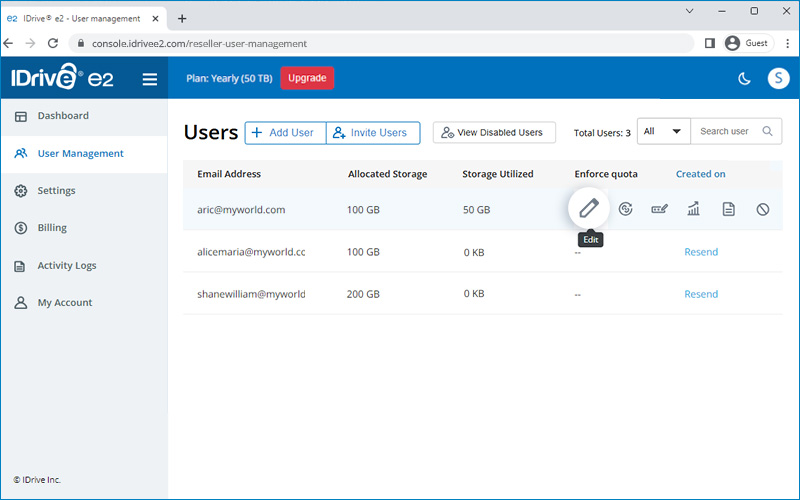
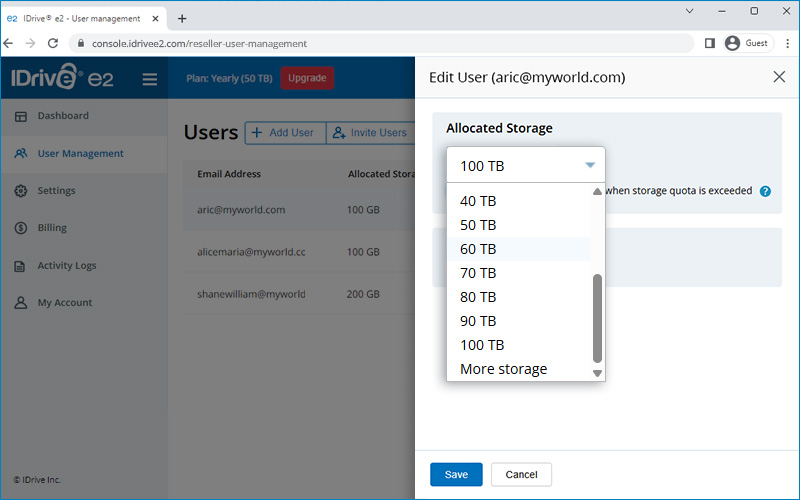
- Click the 'Allocated Storage' dropdown and select the new storage quota.
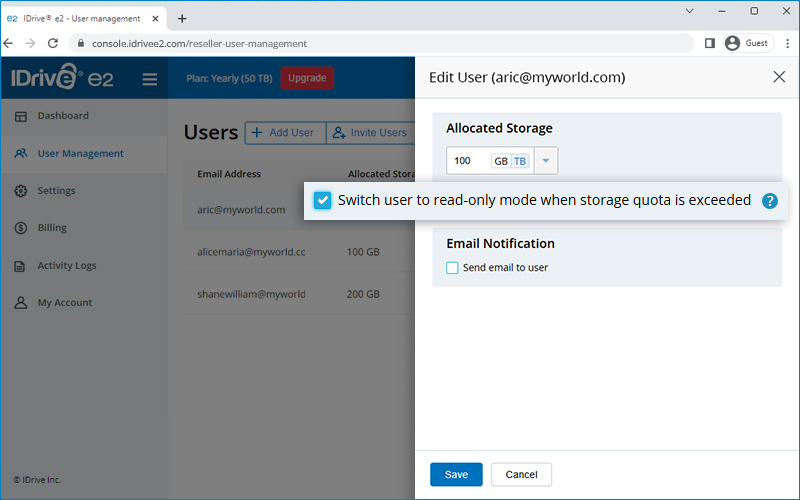
- Select the 'Switch user to read-only mode when the storage quota is exceeded' checkbox to automatically switch to read-only mode after the user exceeds the allocated storage quota.
Note: Storage usage updates may take up to 24 hours to be reflected. As a result, the user gets switched to read-only mode with a corresponding delay once the allocated storage is exceeded.
- Click 'Save'. The new storage quota is updated for the corresponding user.